Hi there, Welcome to Edvie! A user-friendly tool for attendees to network and a perfect fit for virtual events and remote collaboration that can be used on the go
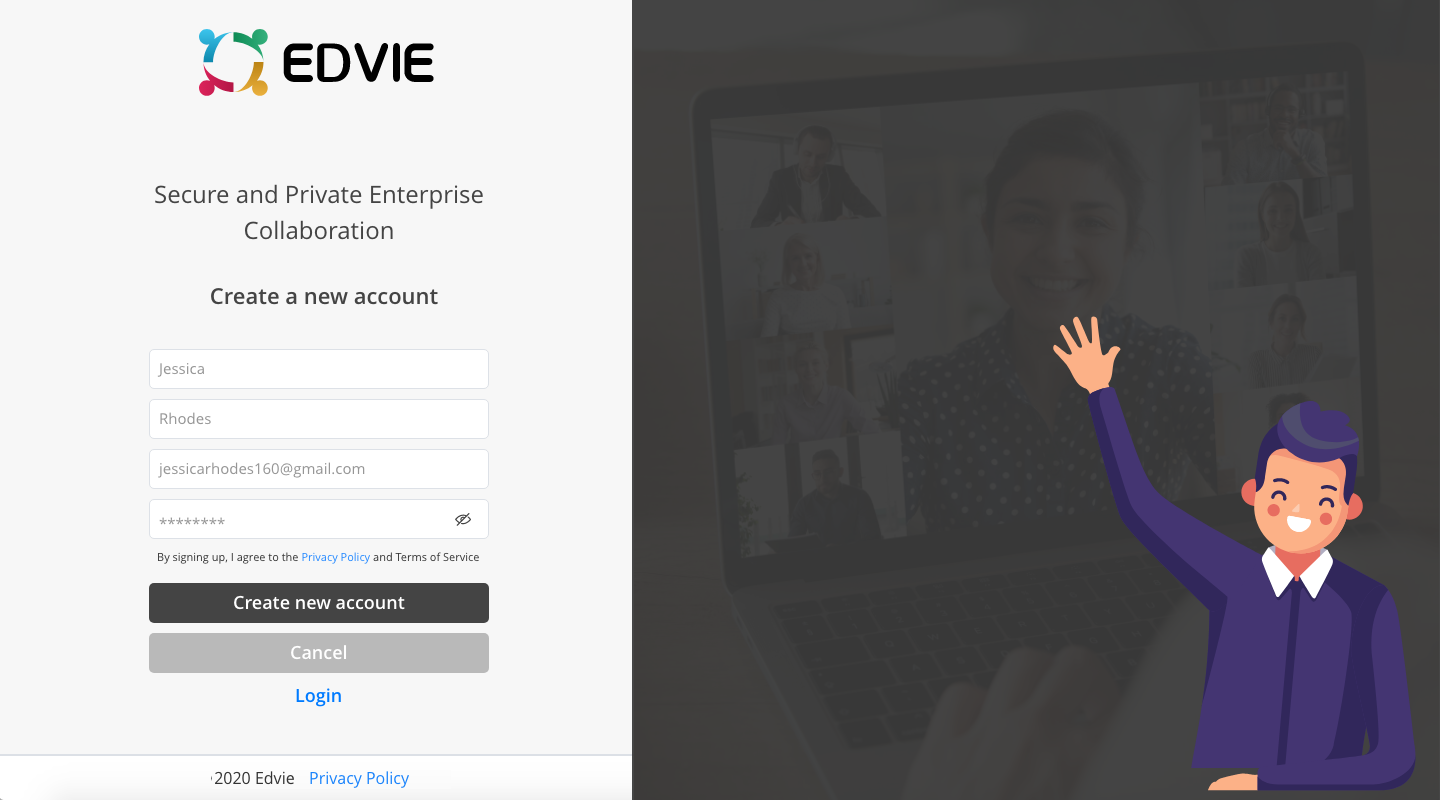
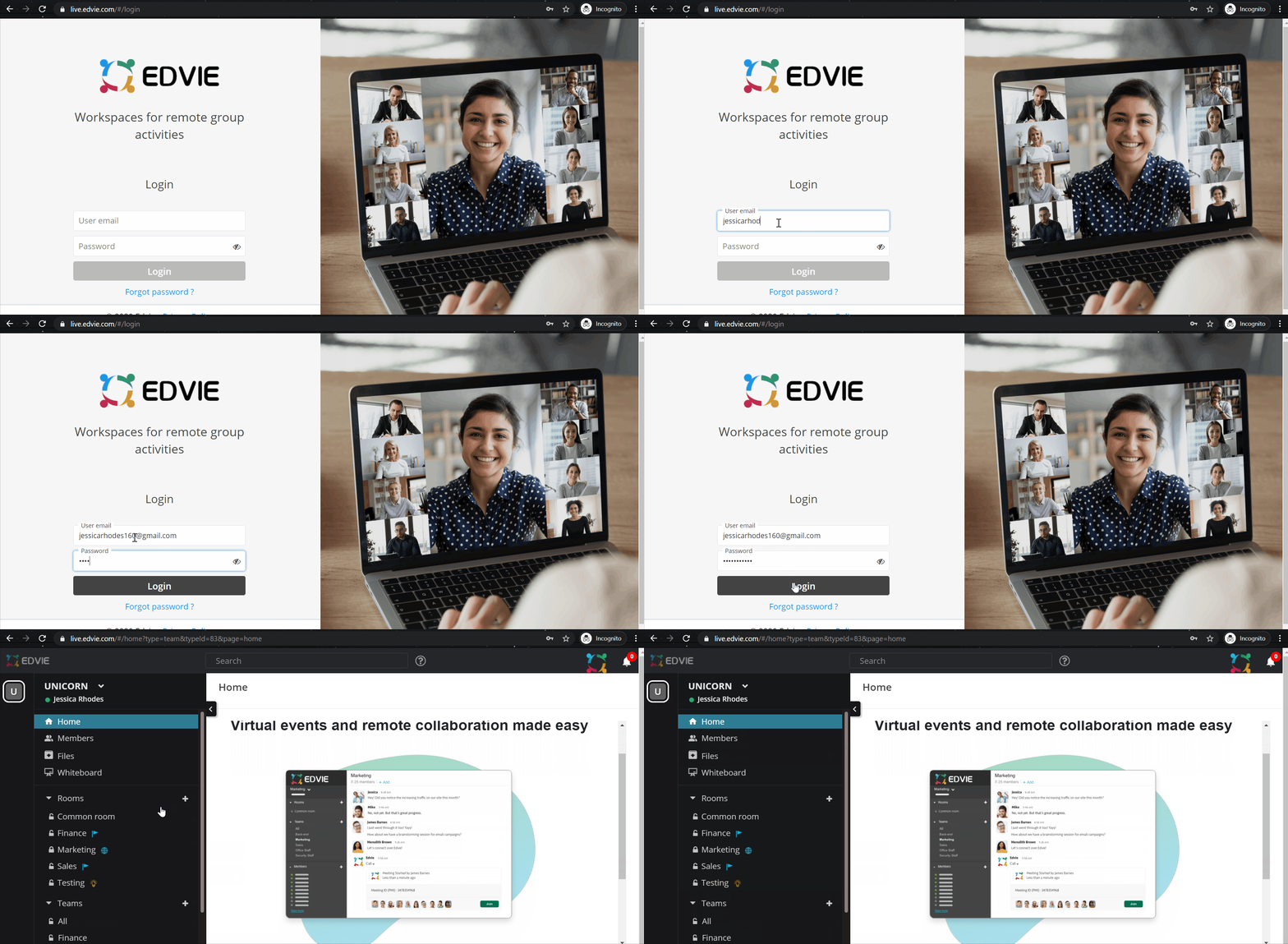
Let's get started! Click on the invite link you receive from your admin (direct link or through an email) to create a new account! Put in your credentials and you'll be able to login successfully!
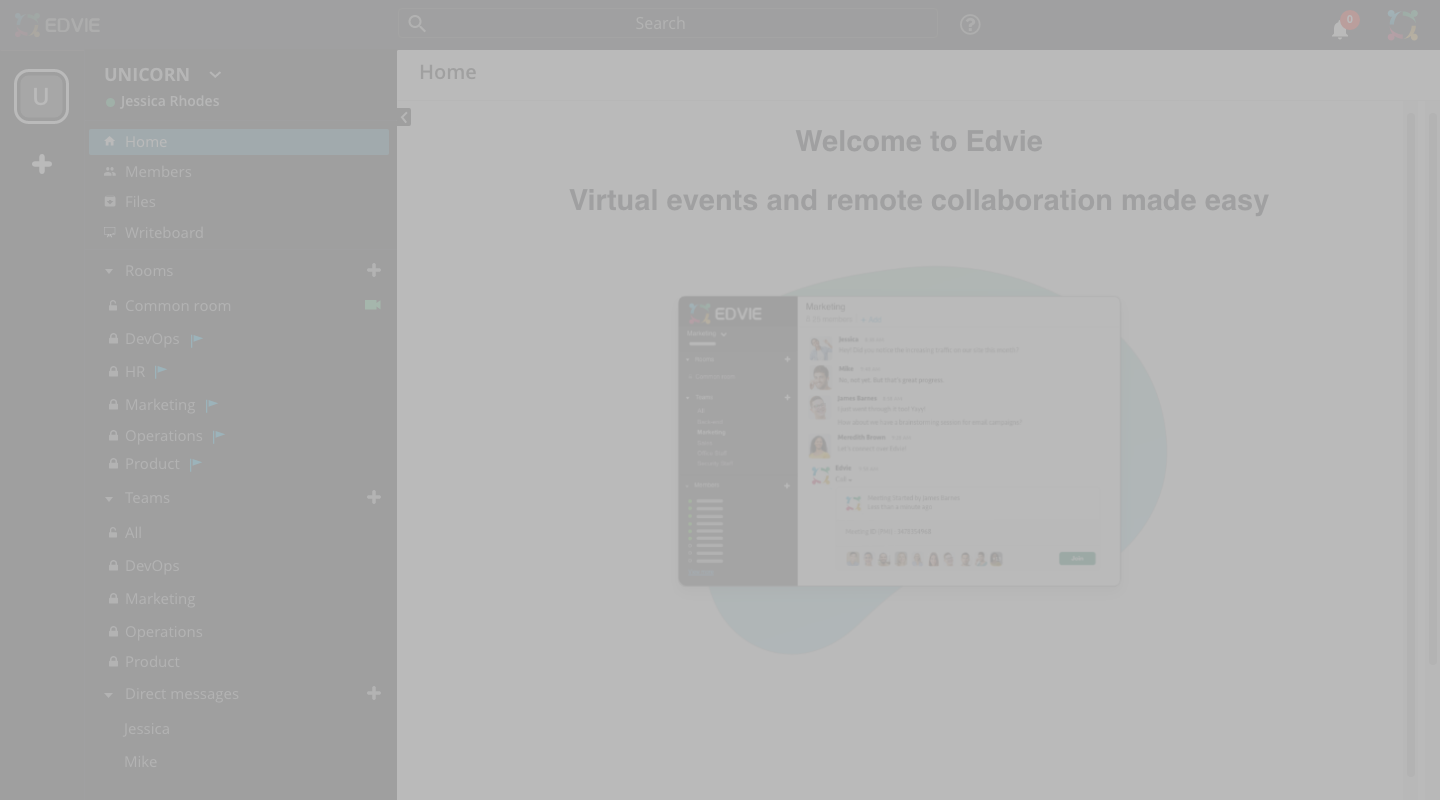
Follow along by selecting the advanced
arrow on the cue cards or by selecting the
highlighted features
With Edvie, you can meet, chat, call, and
Collaborate with everyone you work with- all
In one workspace
Select your experience
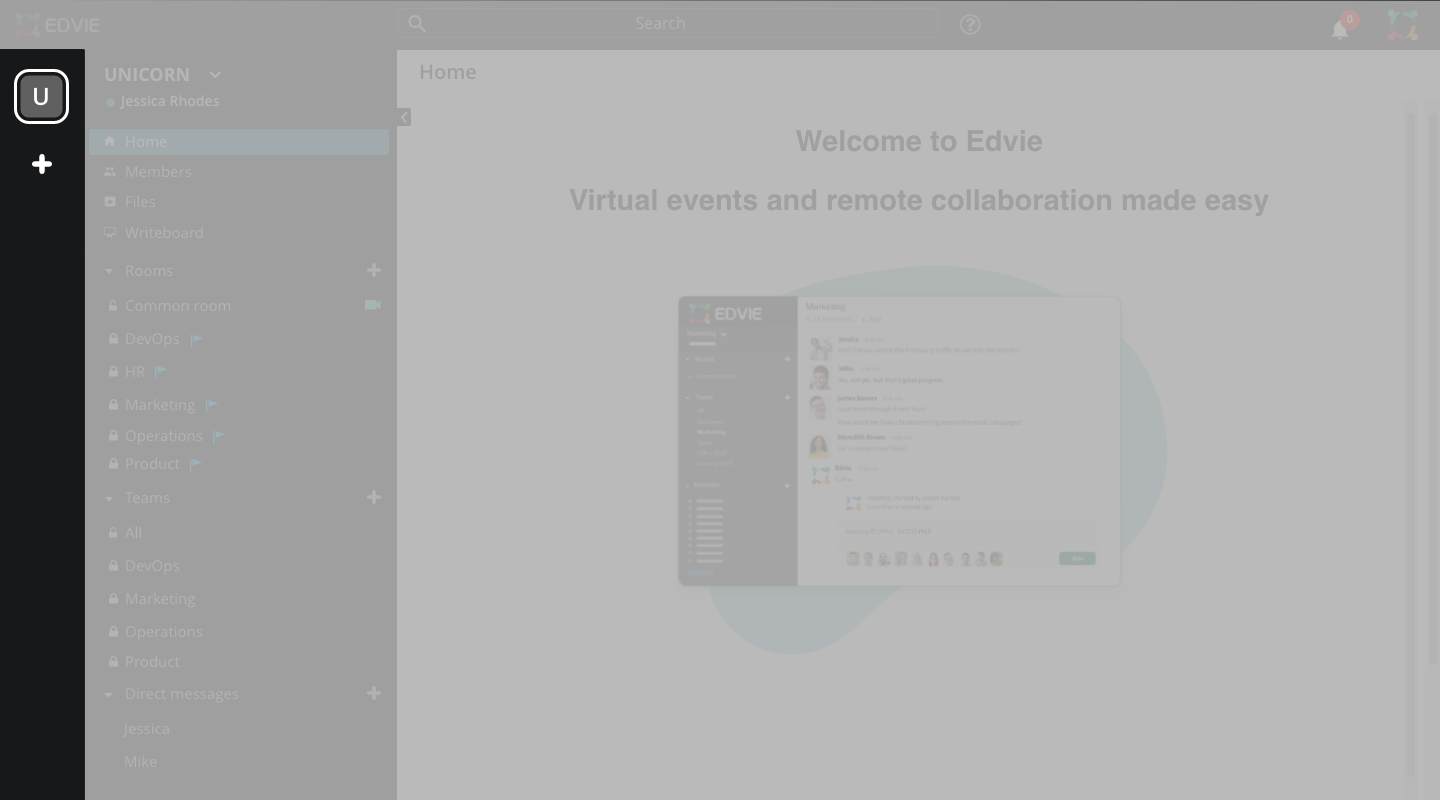
Here's your workspace. Collaborate
Instantly with your team
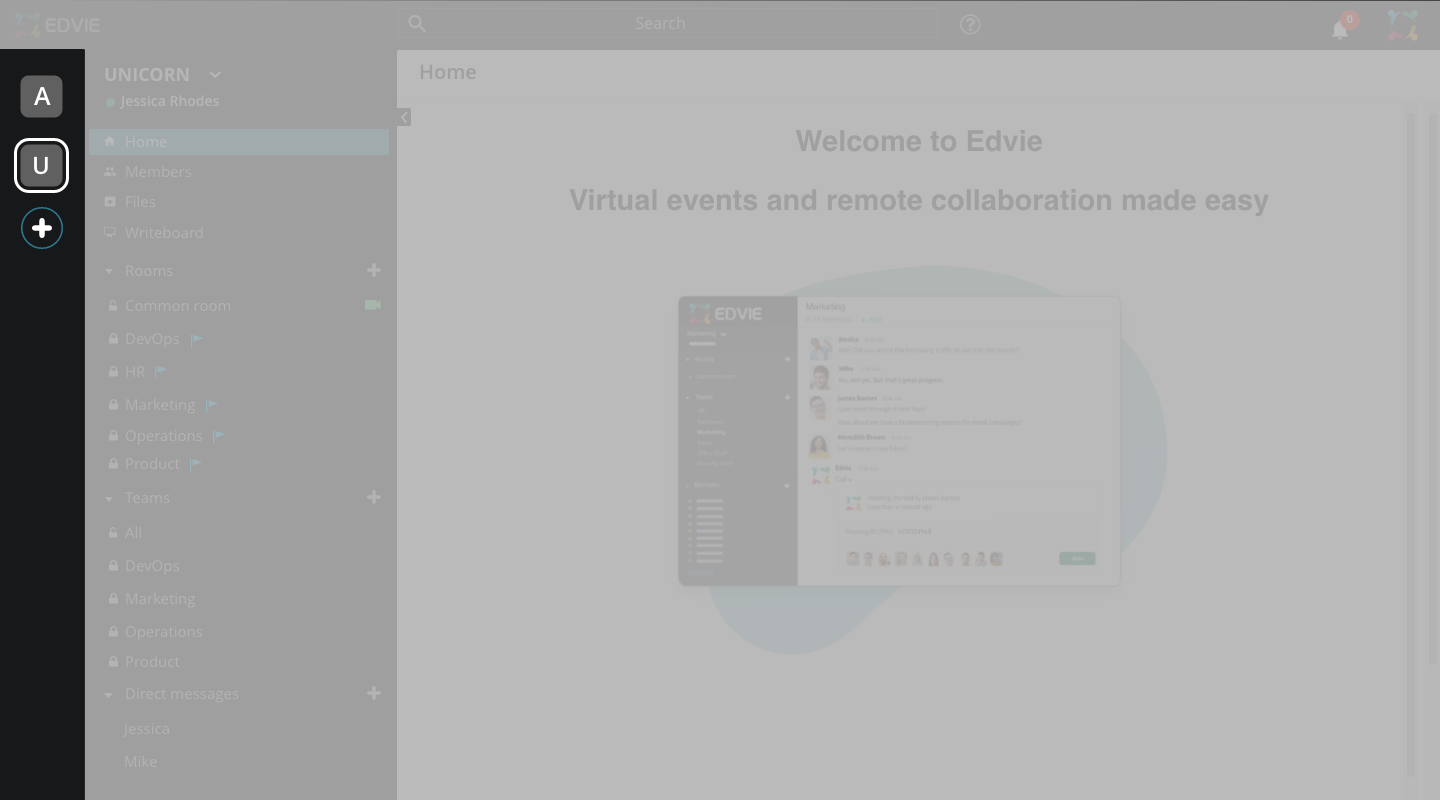
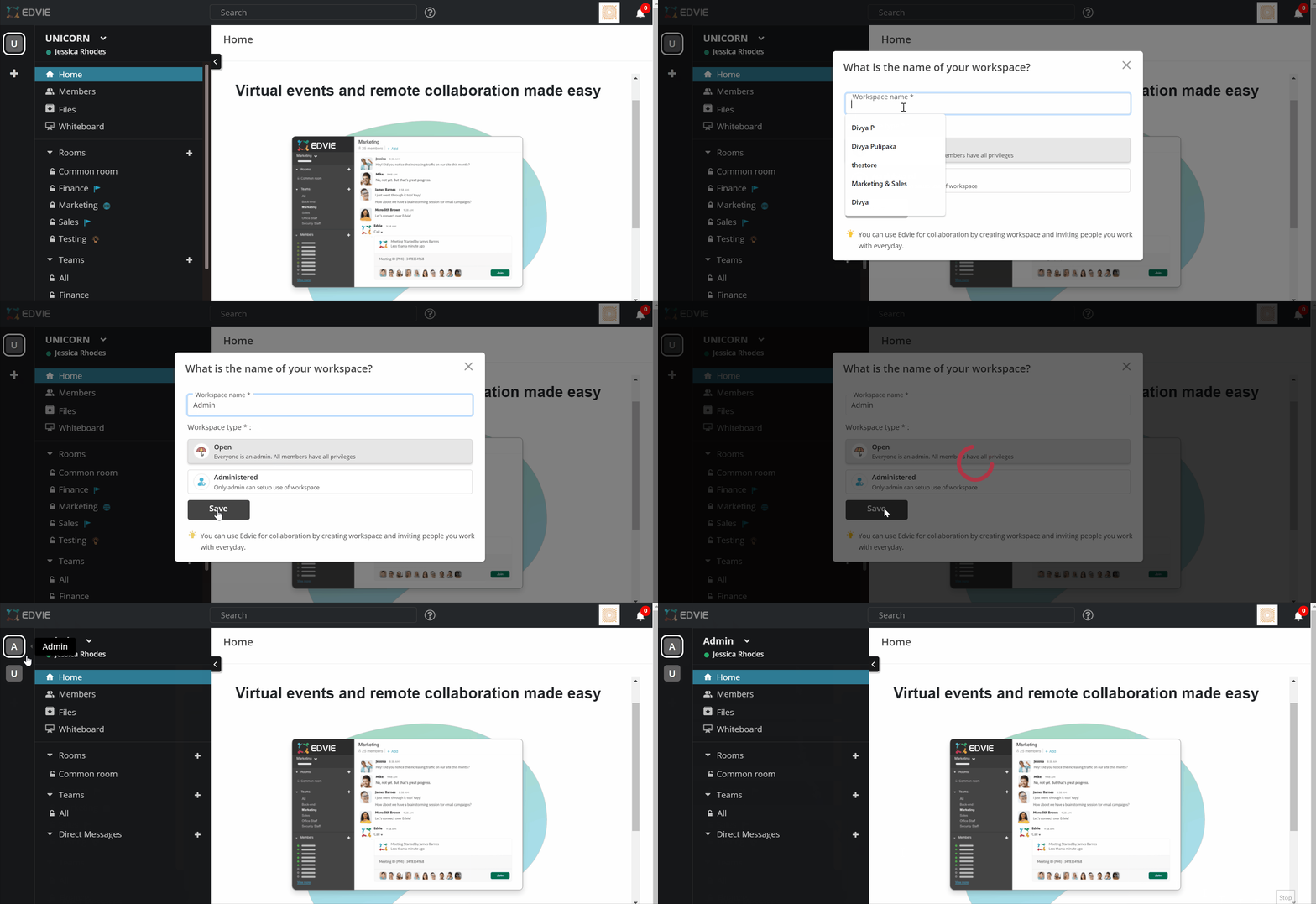
By clicking the (+) icon, you can create new workspaces and keep them organized by separating them and jumping back and forth between multiple workspaces. For example, a private workspace for sensitive HR-related communication, a workspace for administrative purposes, etc
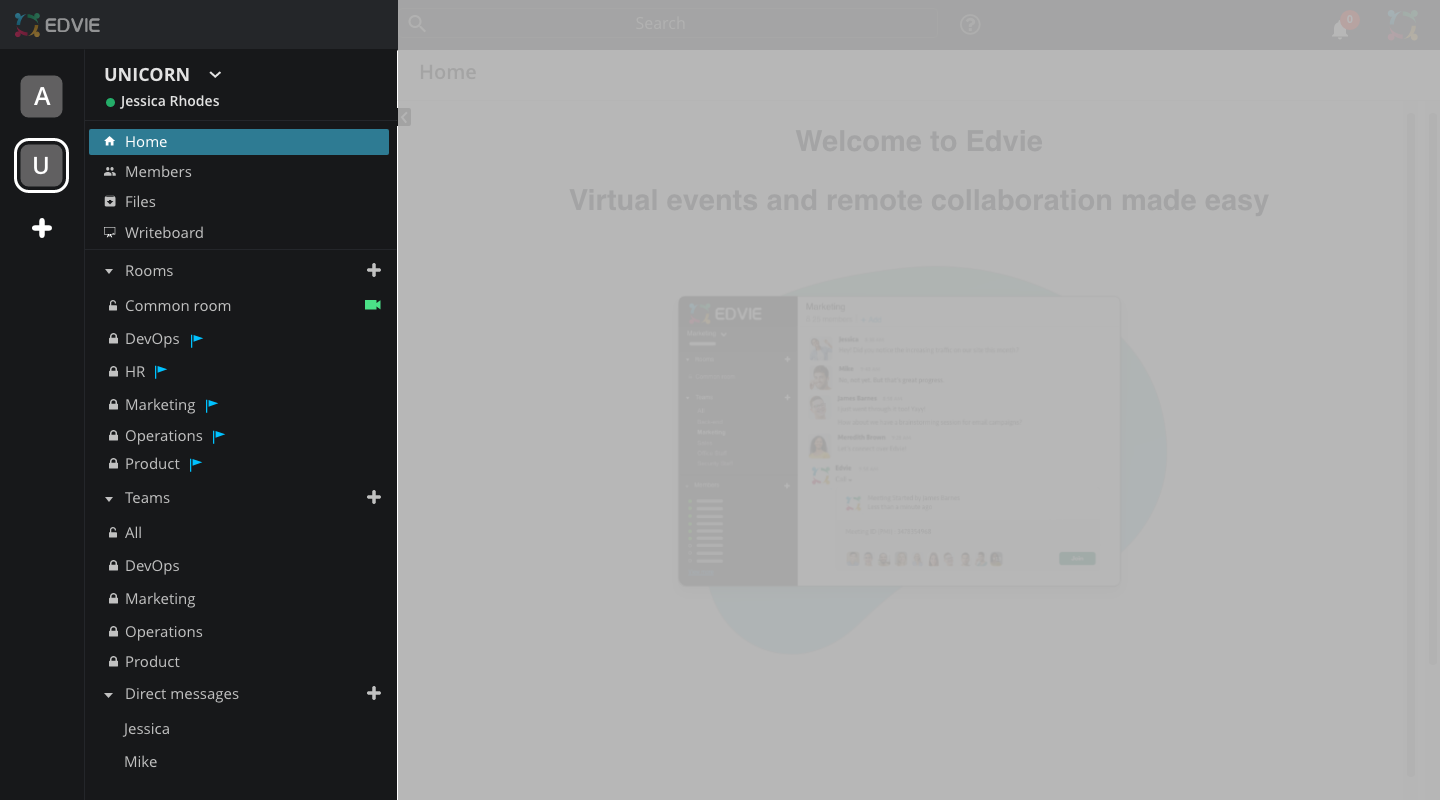
This is your navigation bar- you'll see about, files, members, whiteboard, rooms, teams, direct messages, and apps
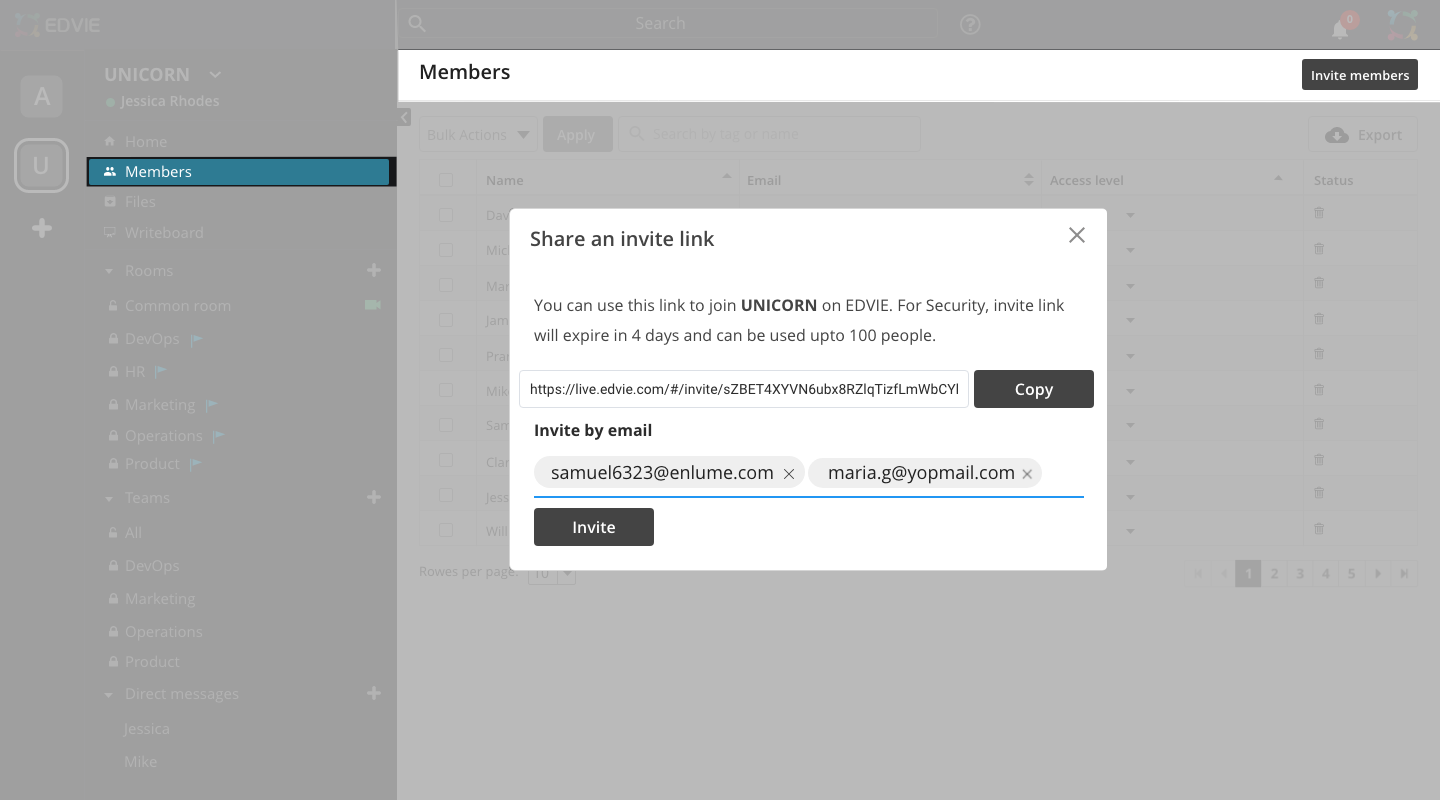
Invite your fellow team members and colleagues into your workspace by copying the invite link. You can also send them an invitation by email
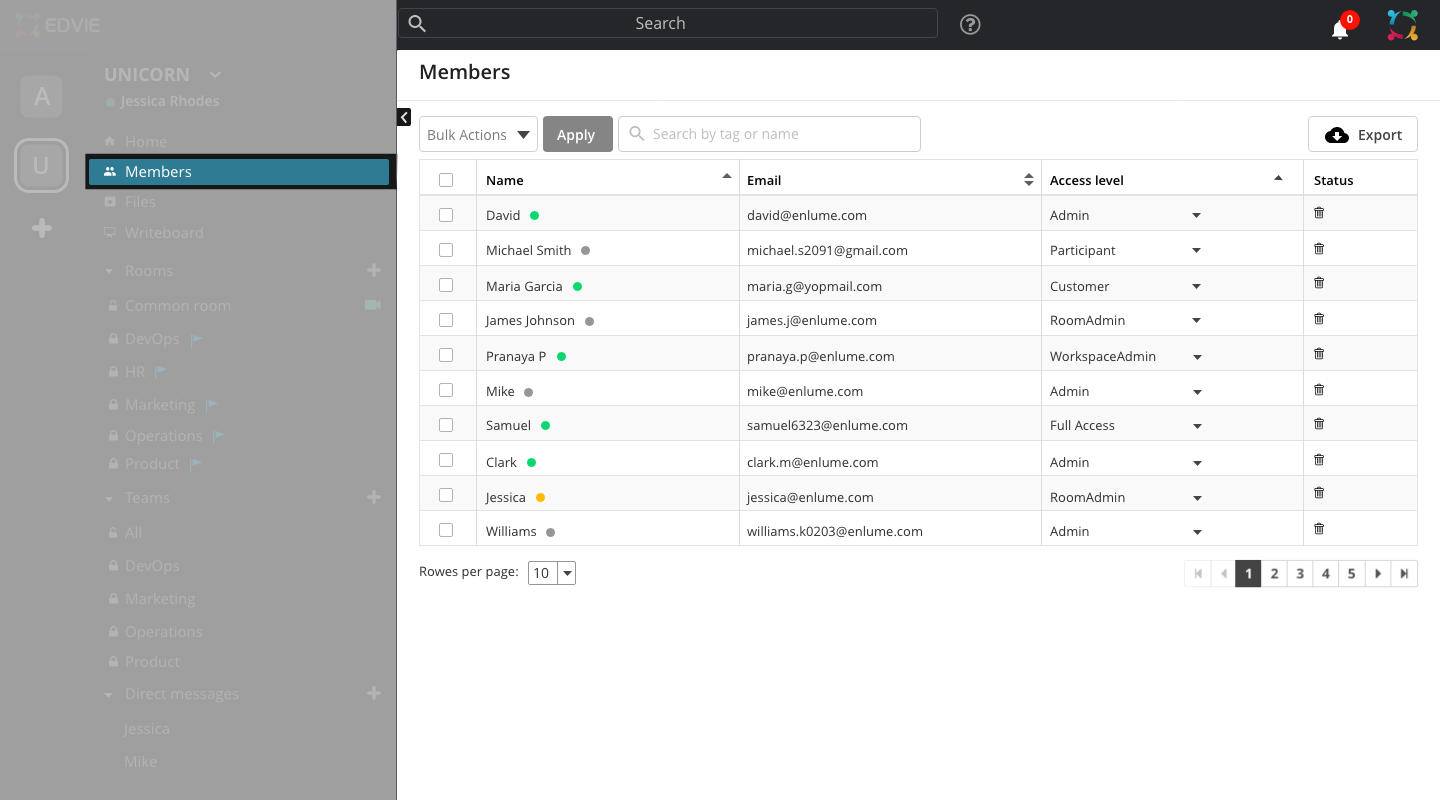
Look up your fellow colleagues and team members who are a part of this organization here! Click on the invite members button to invite more people into your organization. With Edvie, you can also send the invite link through an email. Change roles, add and delete members as per your organization requirements
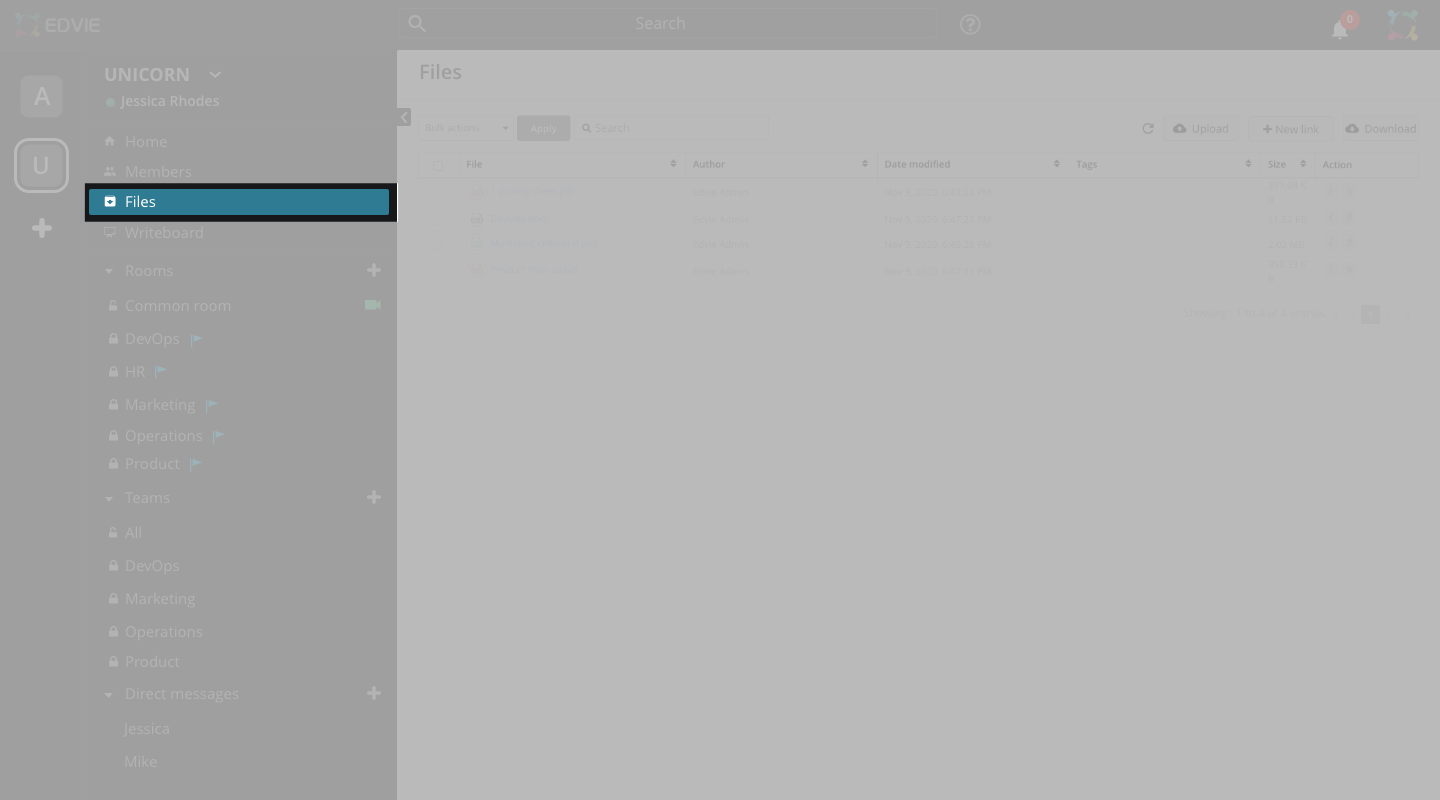
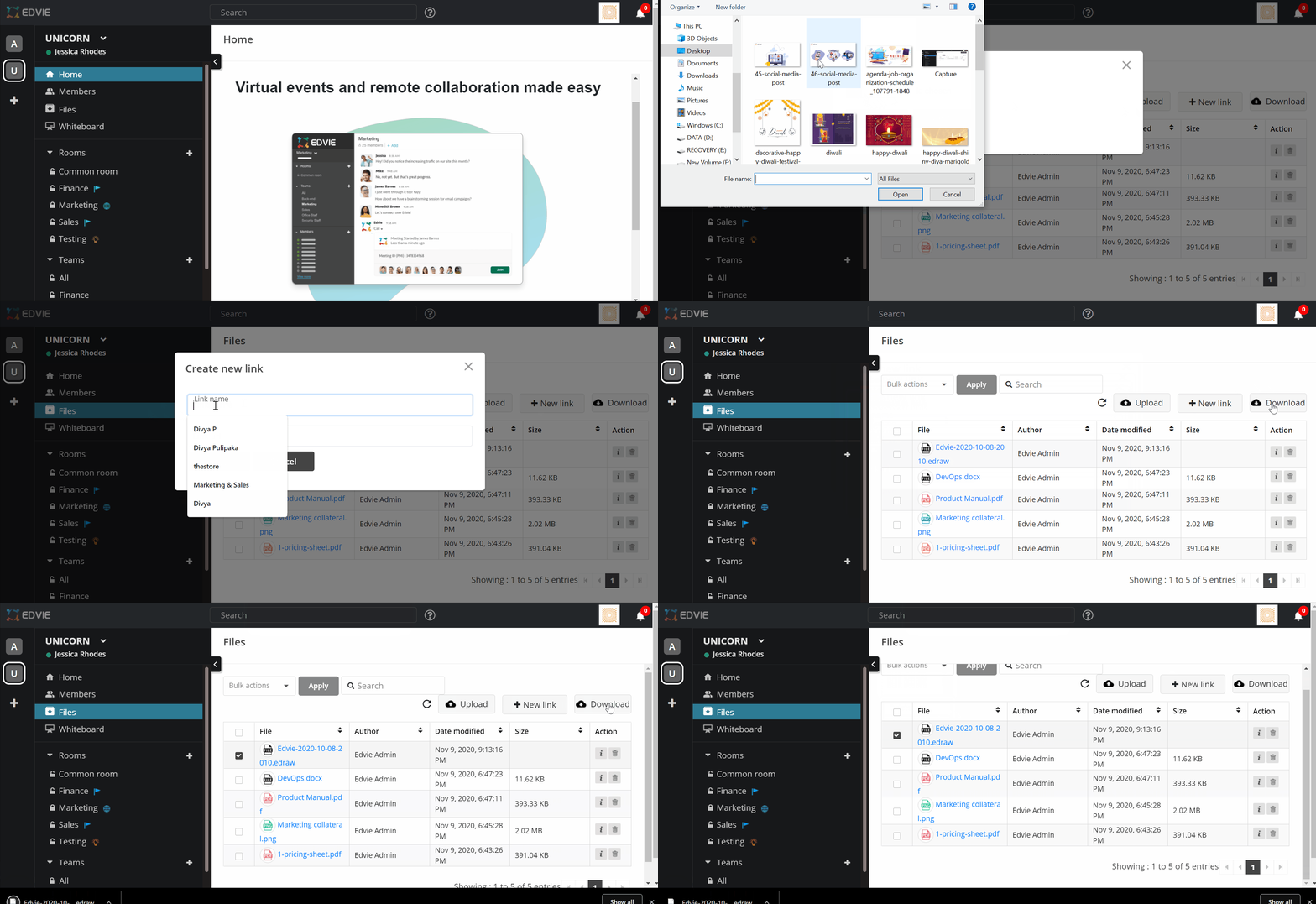
This is the files tab. You can upload your documents directly from here. Share these documents with your teams and individuals with a single click.
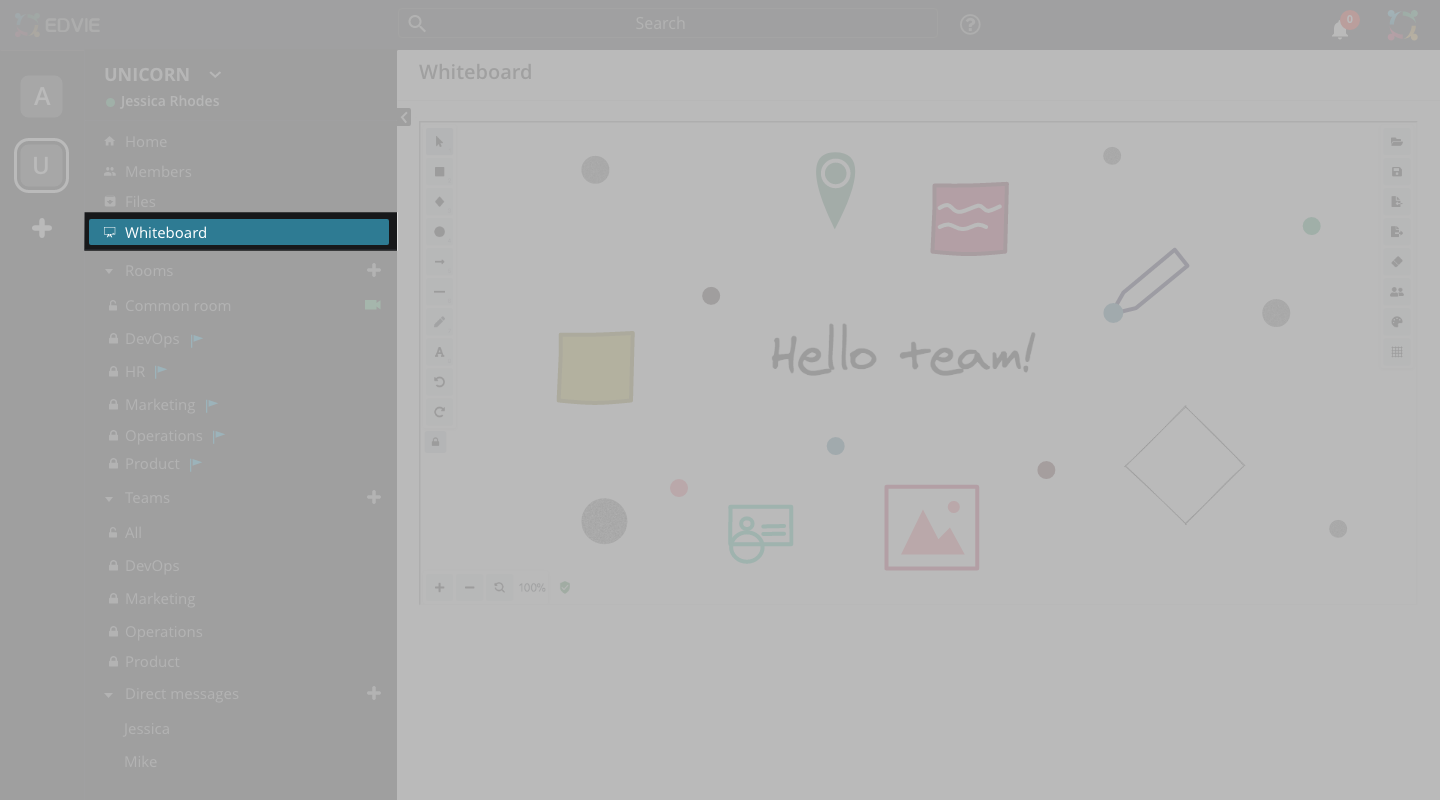
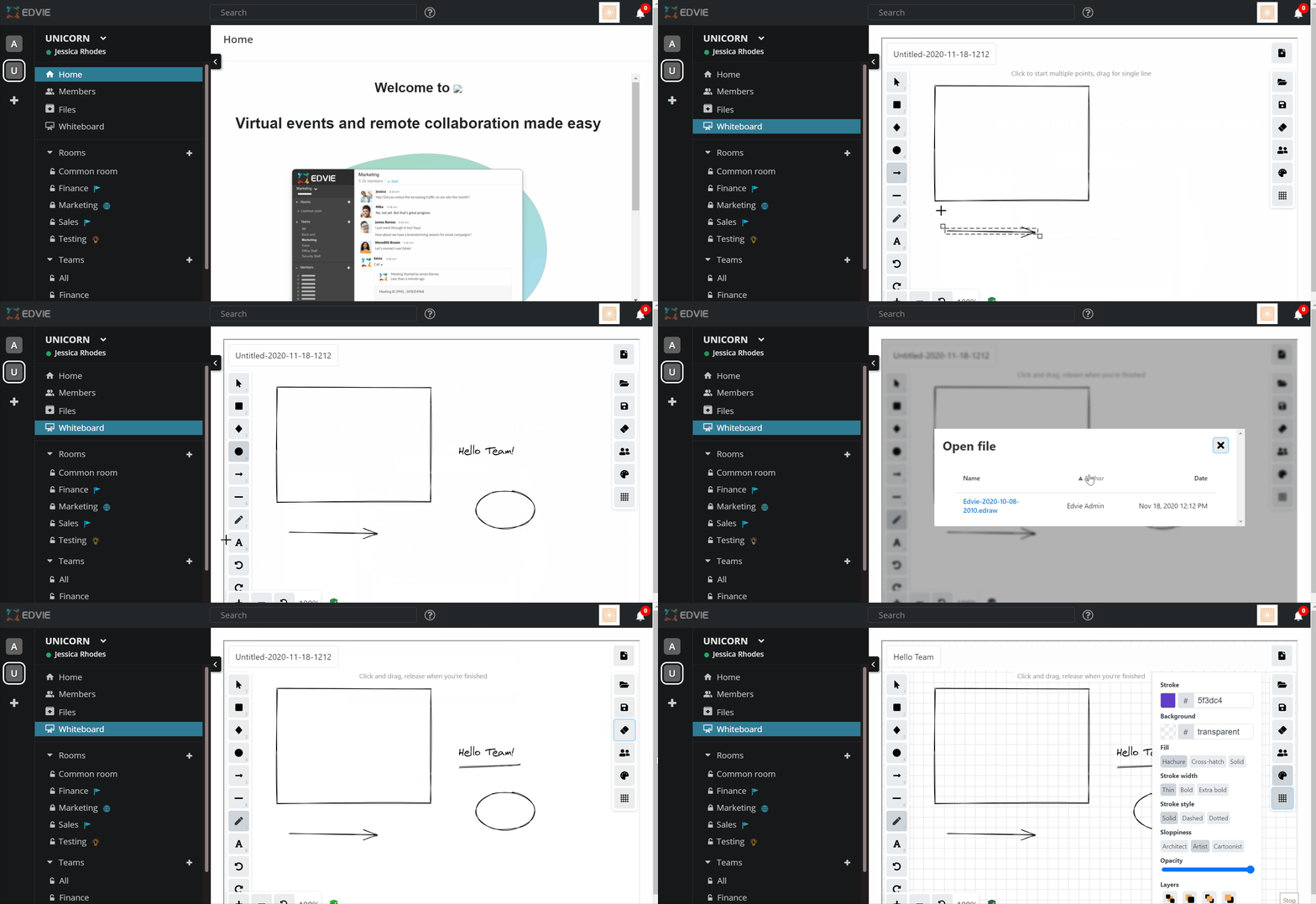
Give your ideas room to grow with Whiteboard. Transform your work into professional-looking charts and shapes on an infinite canvas with an interface designed for pen, touch, and keyboard
Click on the icon to get started!
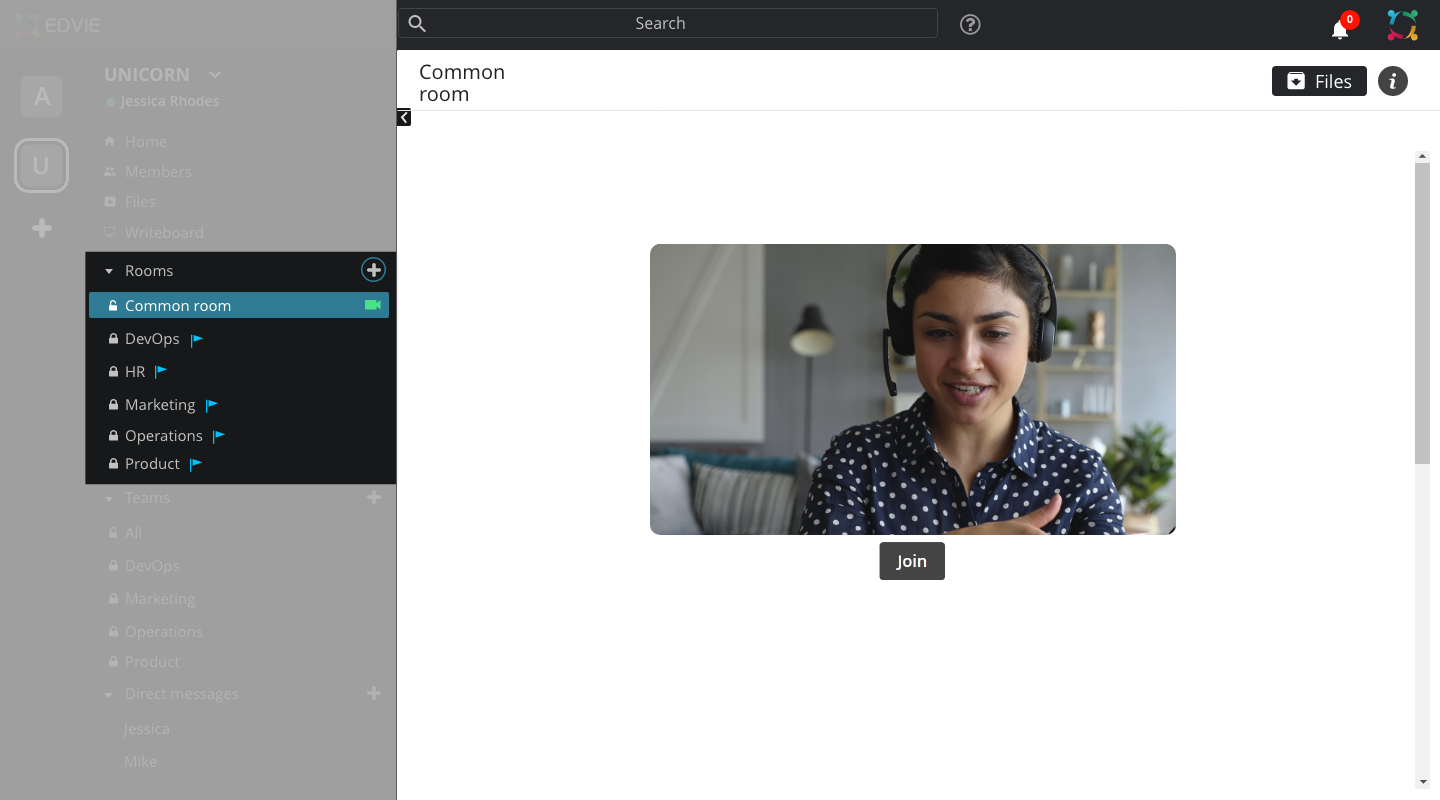
Rooms are where actual online sessions take place. Make the first step towards easy collaboration
Select the icon below
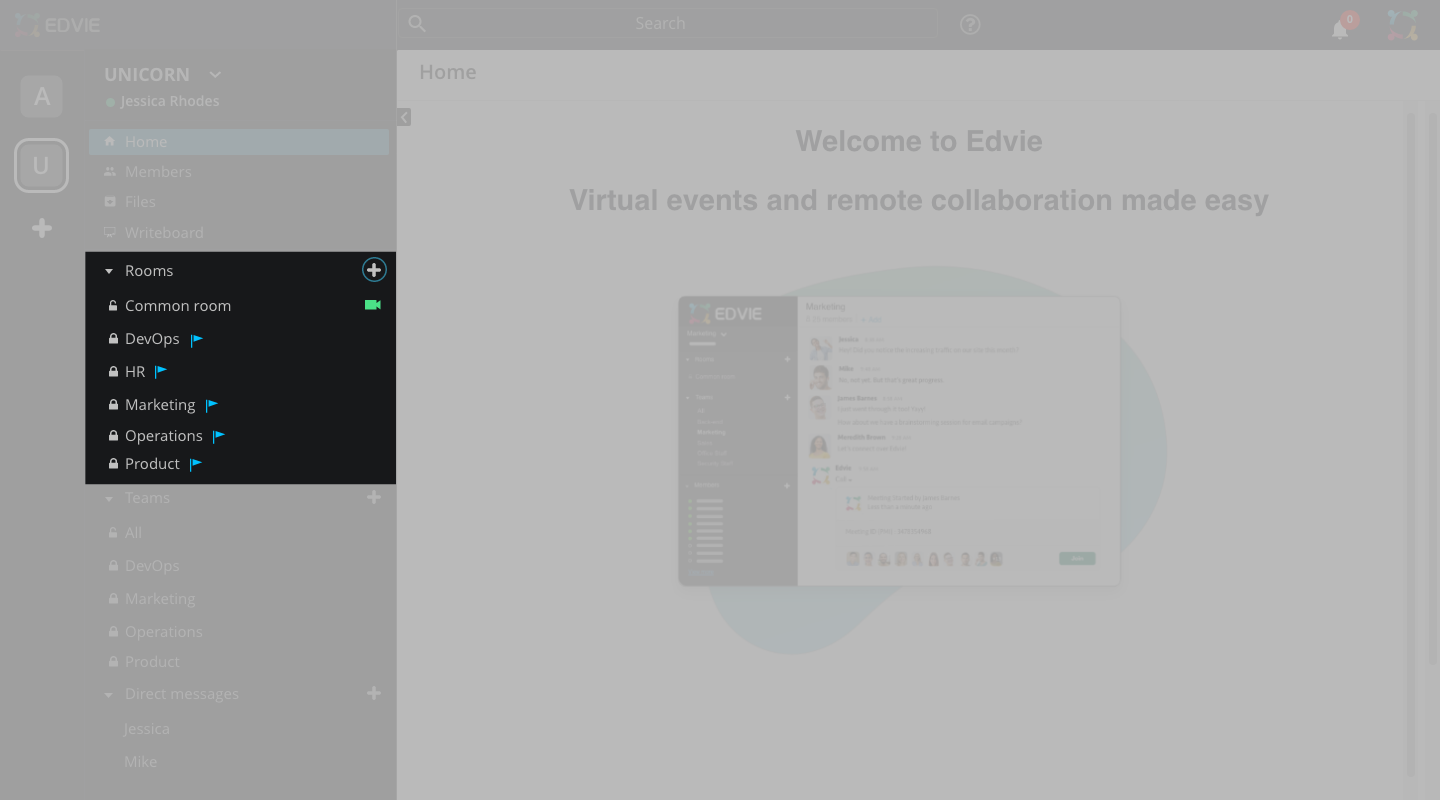
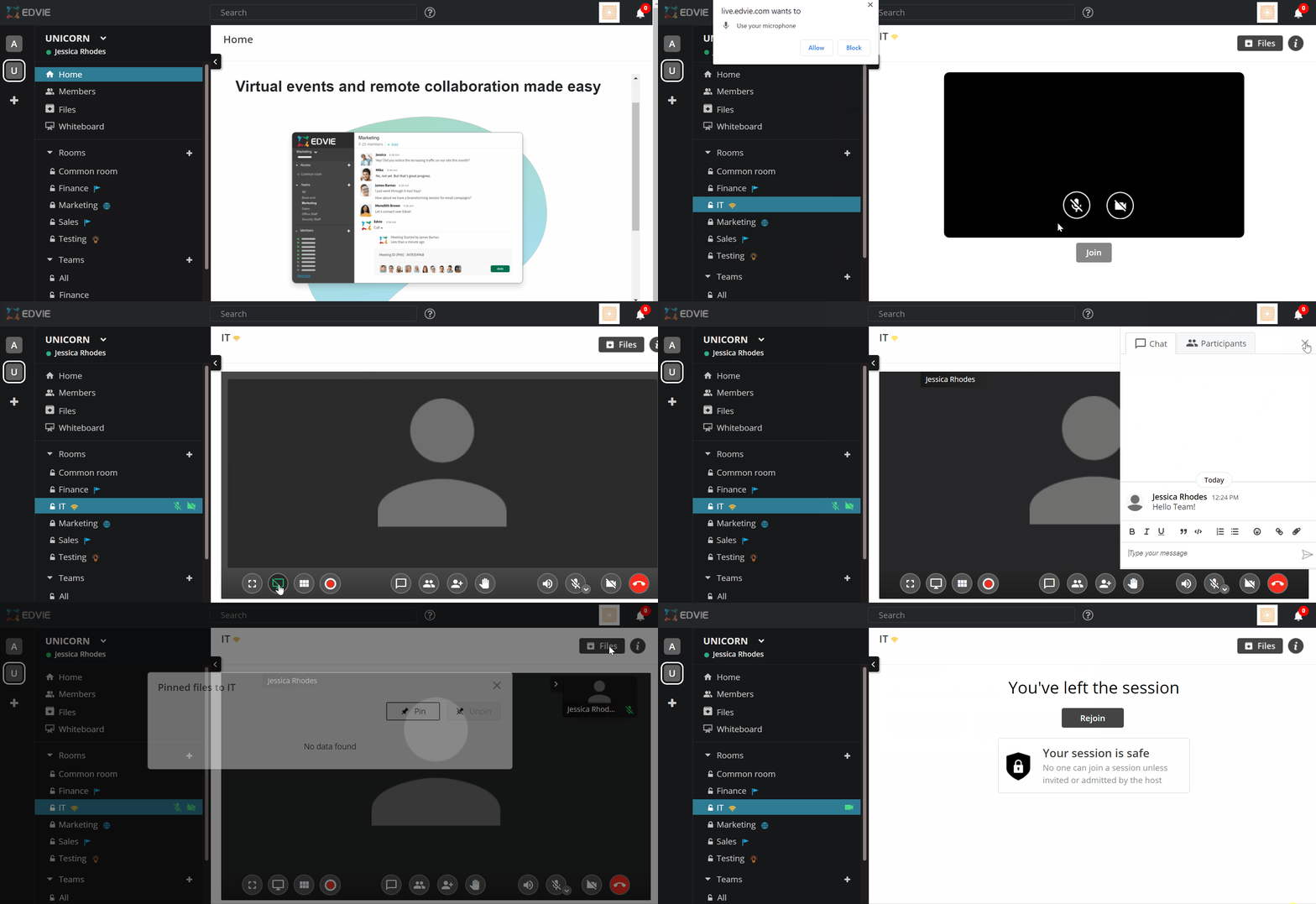
Let's now create a room!
You can create a room for your team. Rooms can be private to invited users or public to your entire organization
Click on the (+) icon to add create a new room. Give a name for your room, select privacy, and select an icon to identify your room
Your room has been setup!
Enter into the room and get started with your meetings
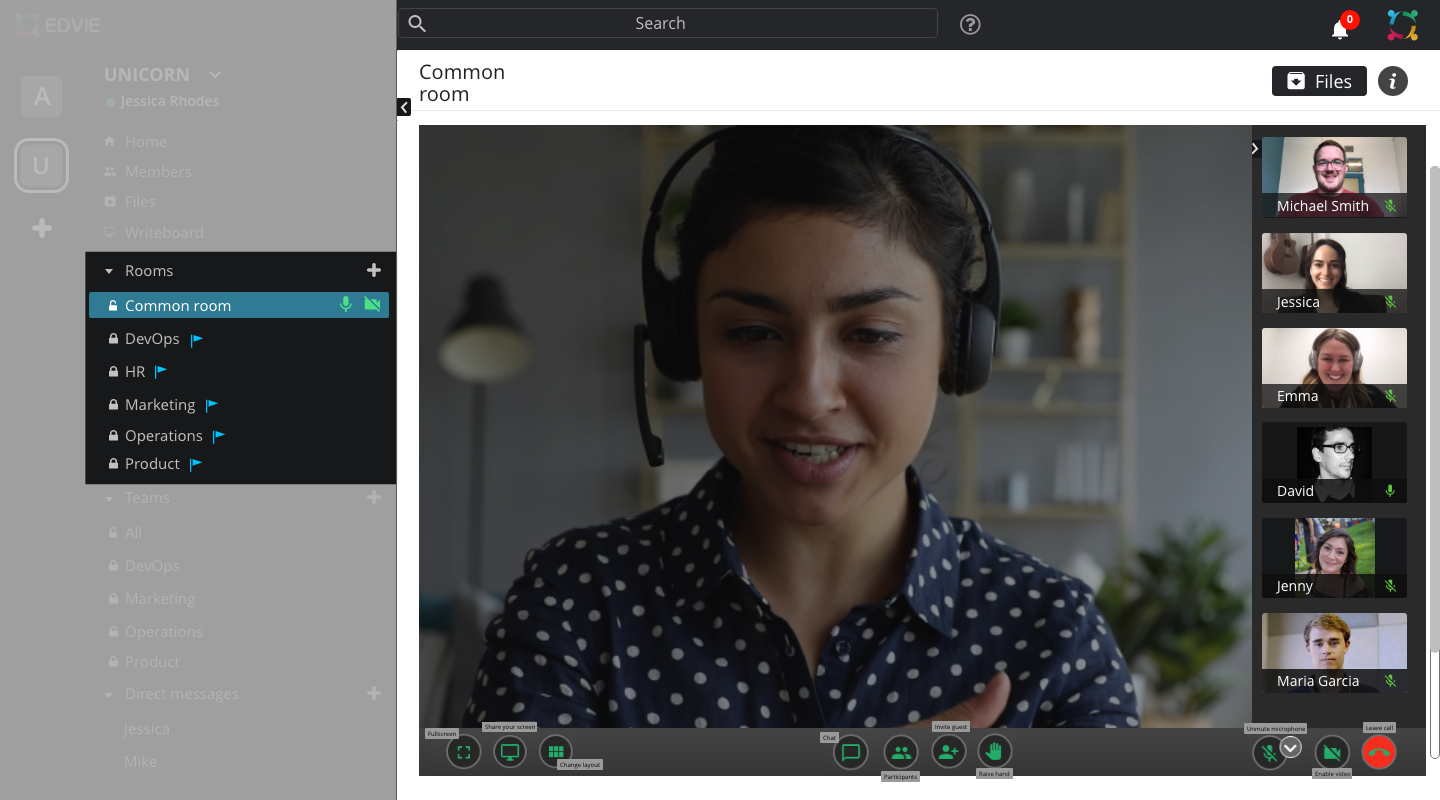
Here's what you can do while on an online session
Click next to know more Change layout, screen share, full-screen view, hand-raise, mute all, participant list, video enable/disable, microphone enable/disable, invite members
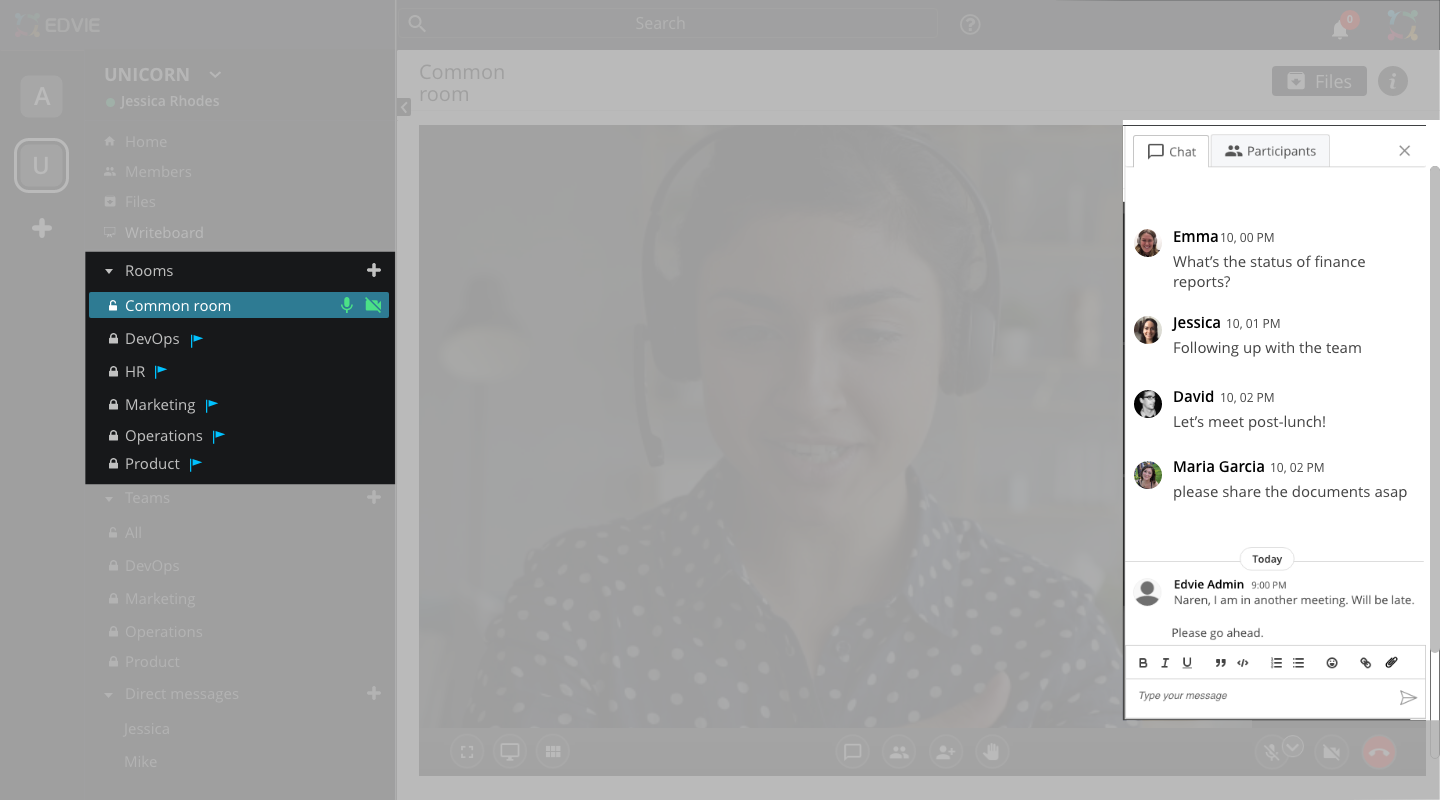
While you're in a session, you can also type in the chat-box and send messages to your team to share information!
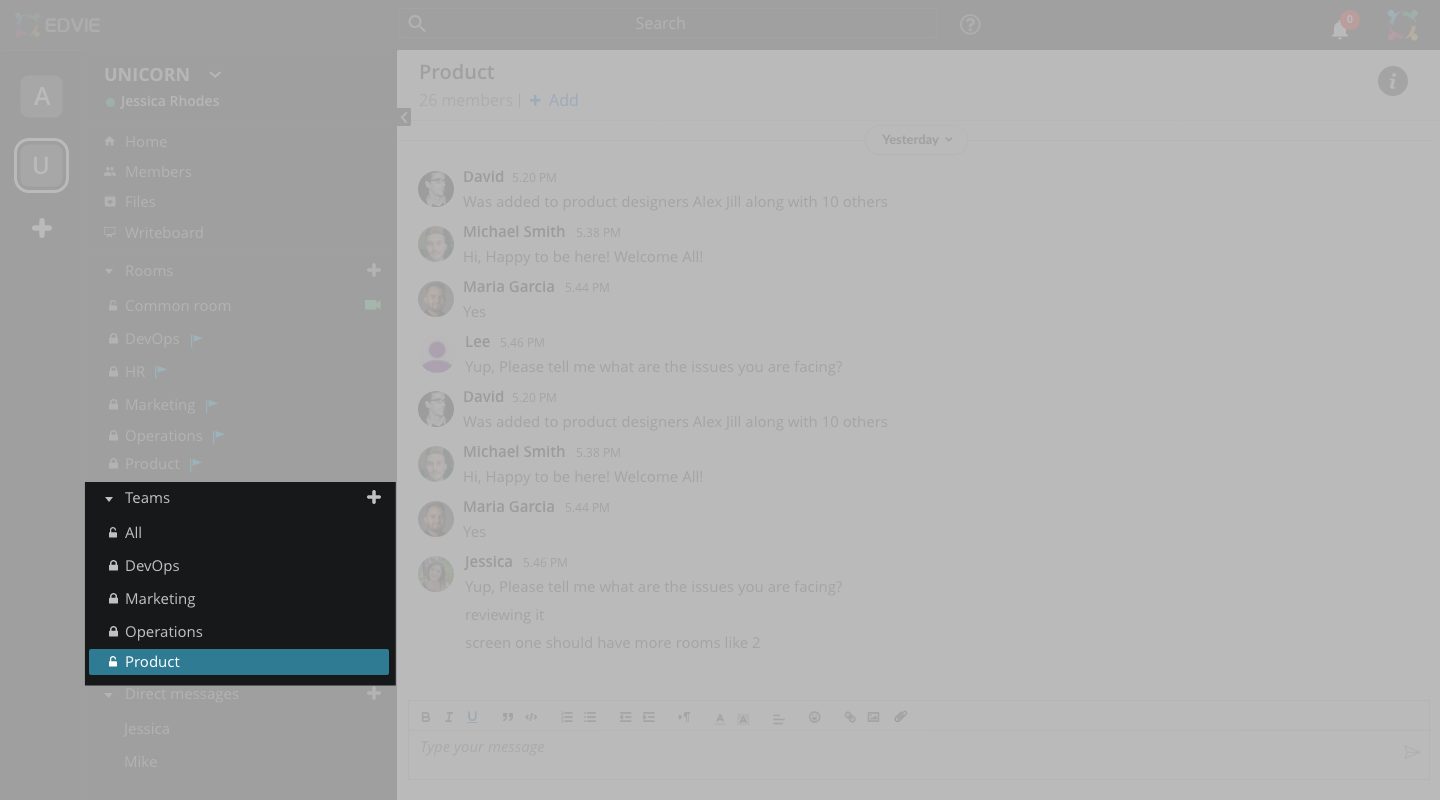
A team is a collection of people, content, and tools based on a specific project or group.
Select the below icon to easily create a new team
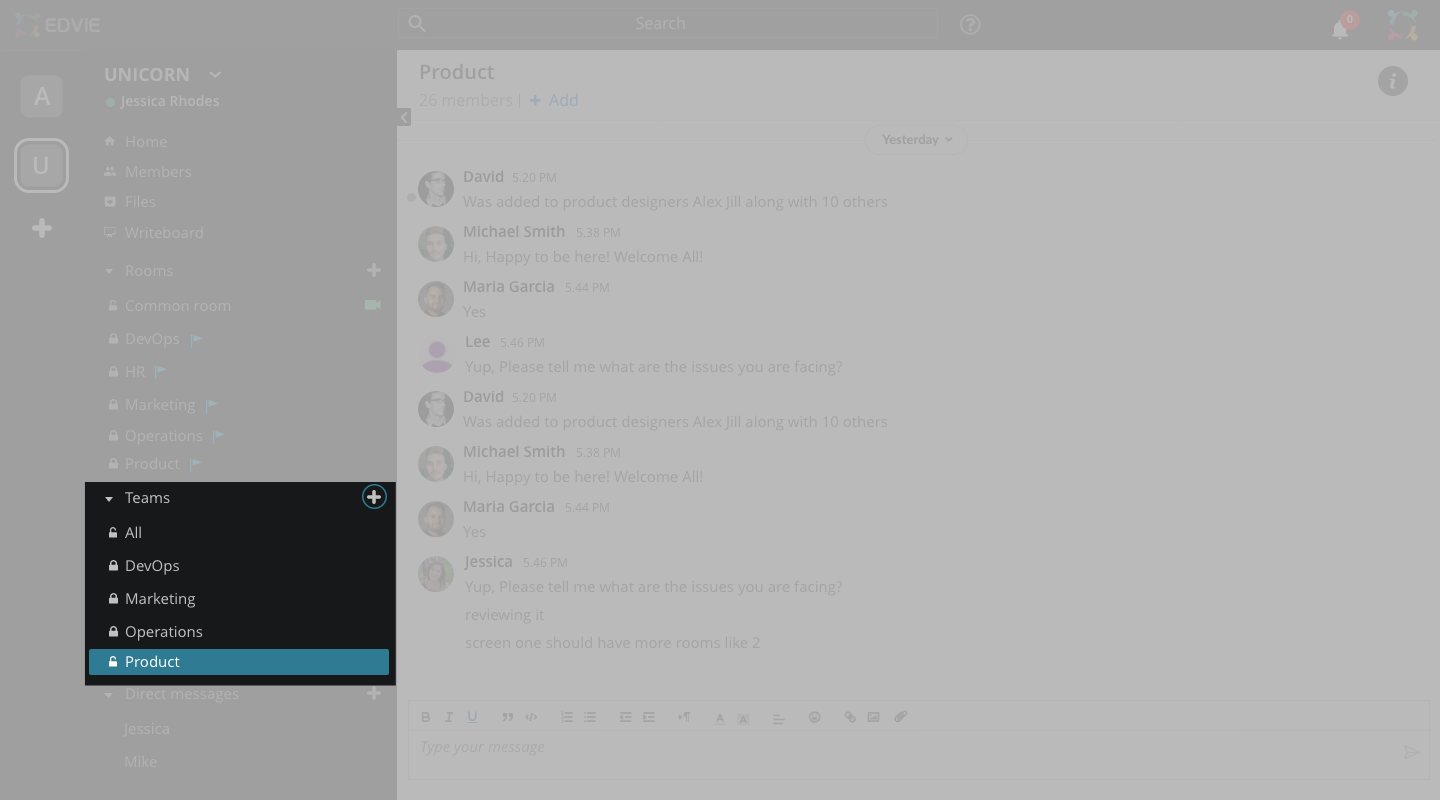
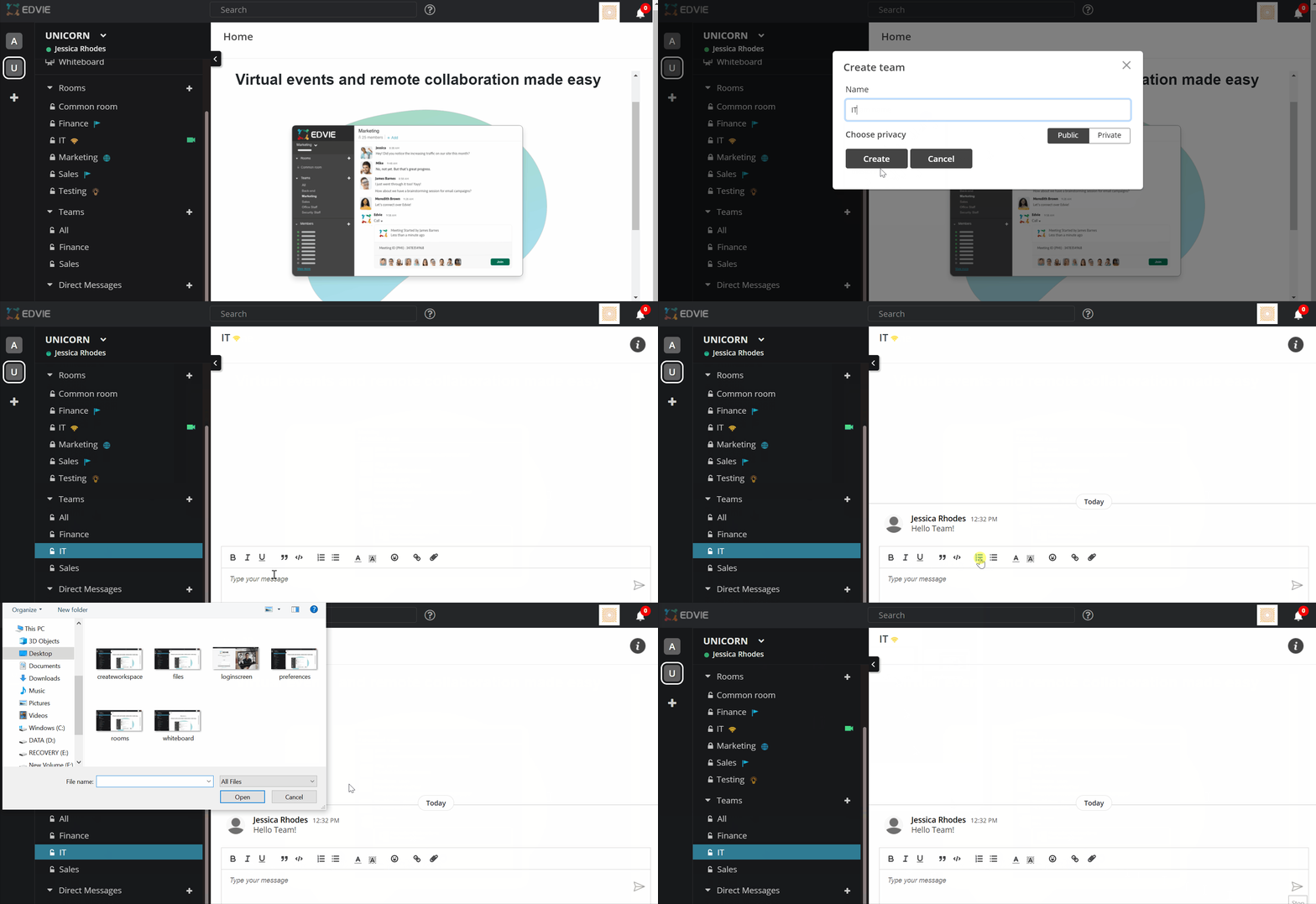
You can create a team for your working group, your project team, or even an interest group. Teams can be private to invited users or public to your entire organization
Click on the (+) icon to add create a new team. Give a name for your team, select privacy, and select an icon to represent your team. Your team has been setup!
Start conversing with your fellow team members. Chat and share files and documents with just one click!
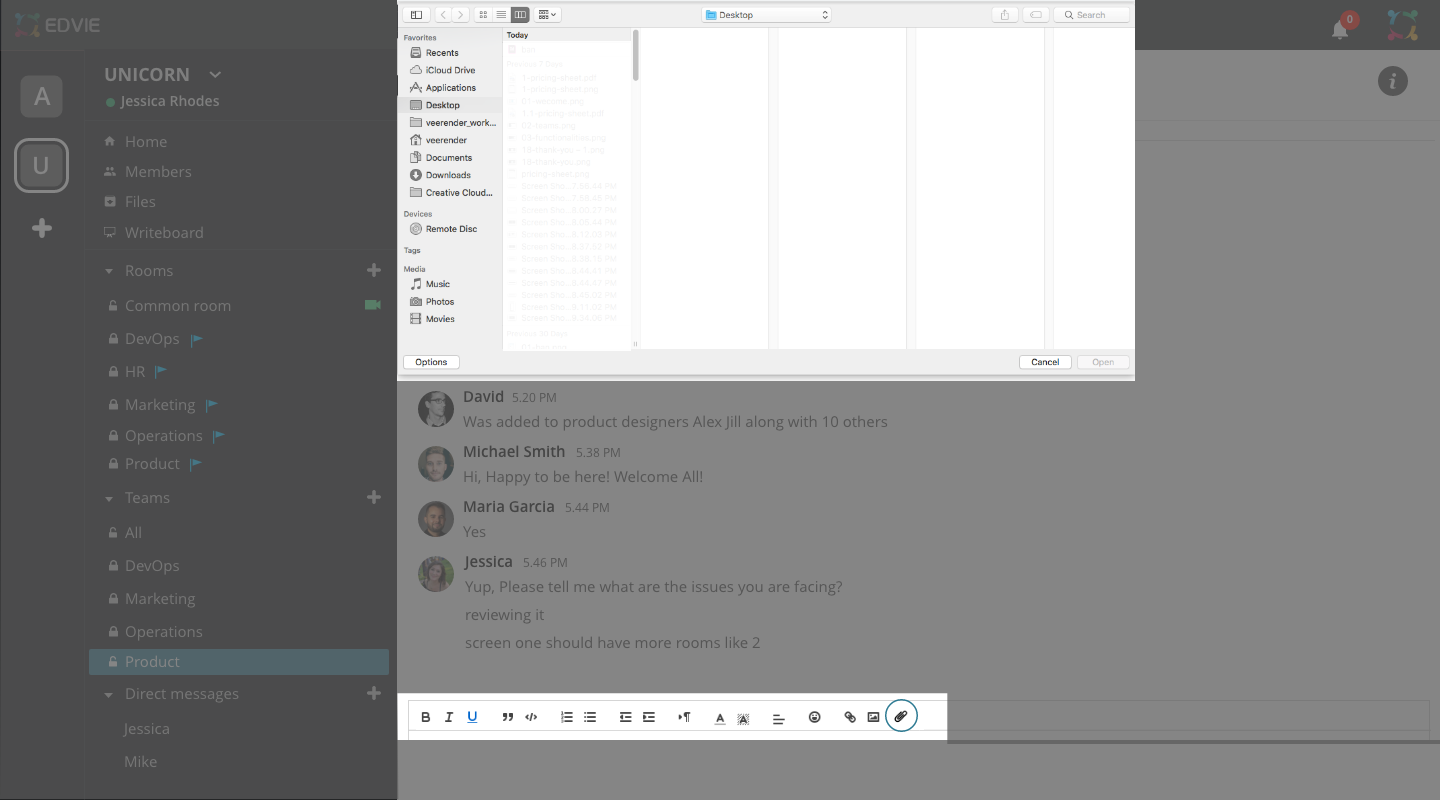
Team members can share documents by attaching files to their messages
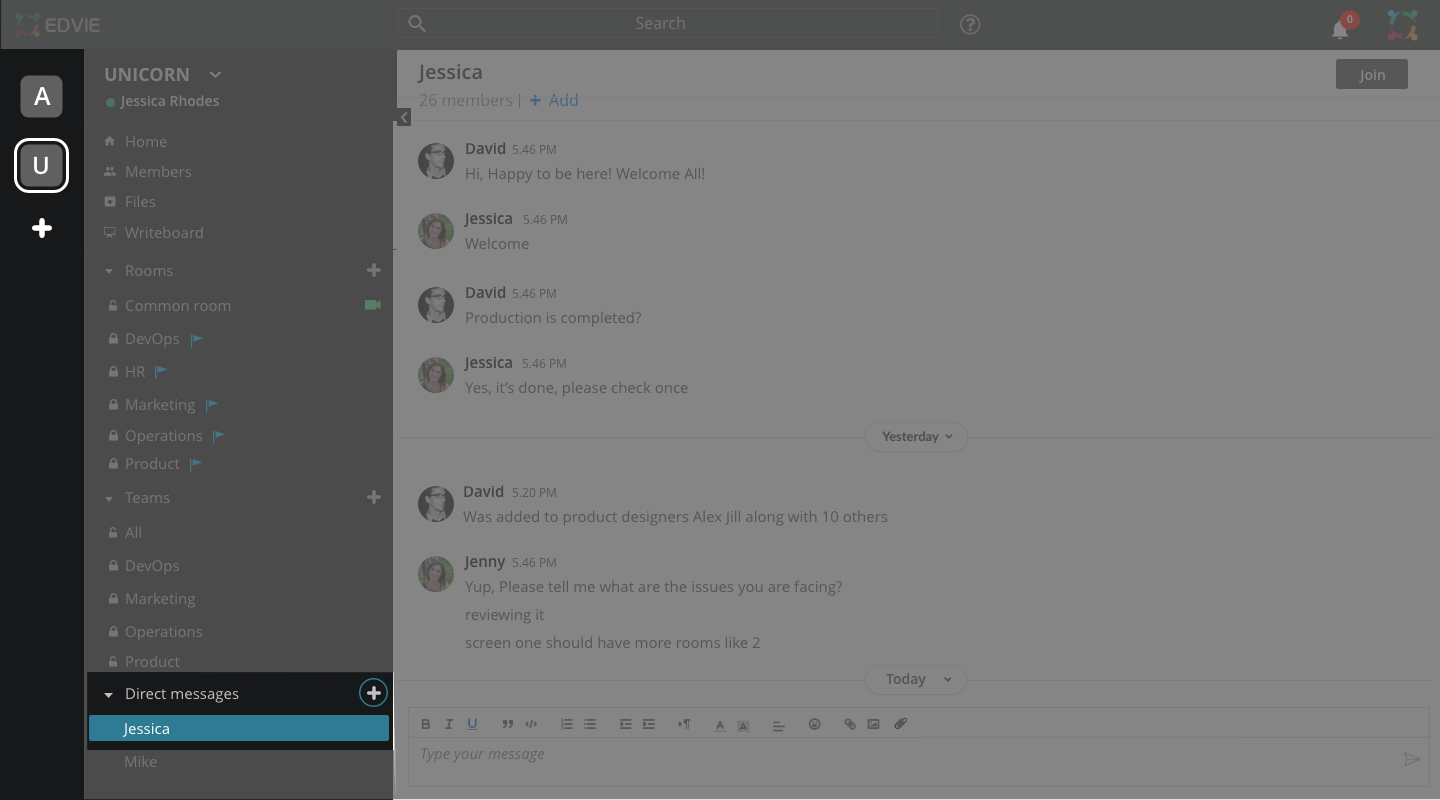
For private chats and one-on-one communications, select a member from your organization
Initiate a conversation by clicking here (+) and select from the drop-down to add a recipient
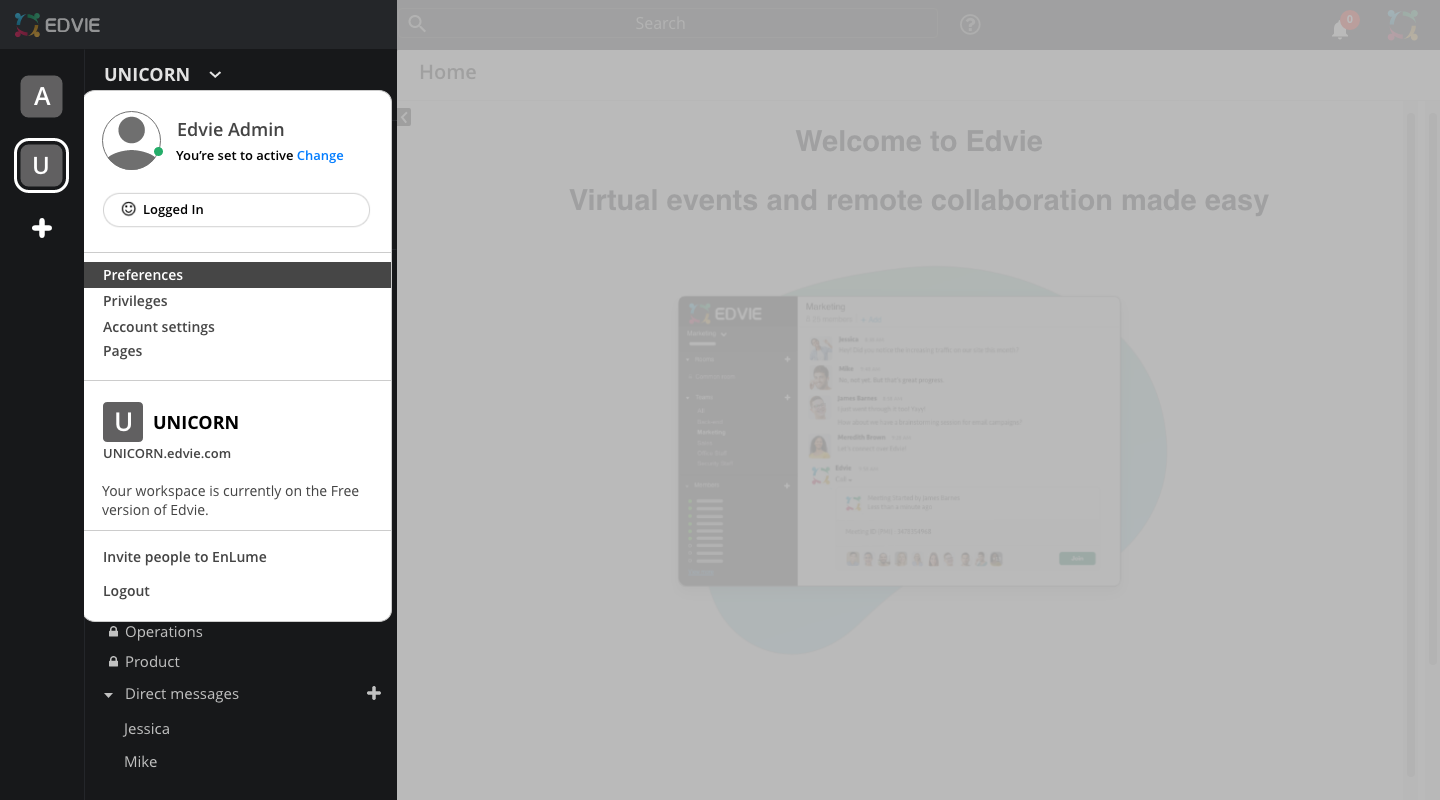
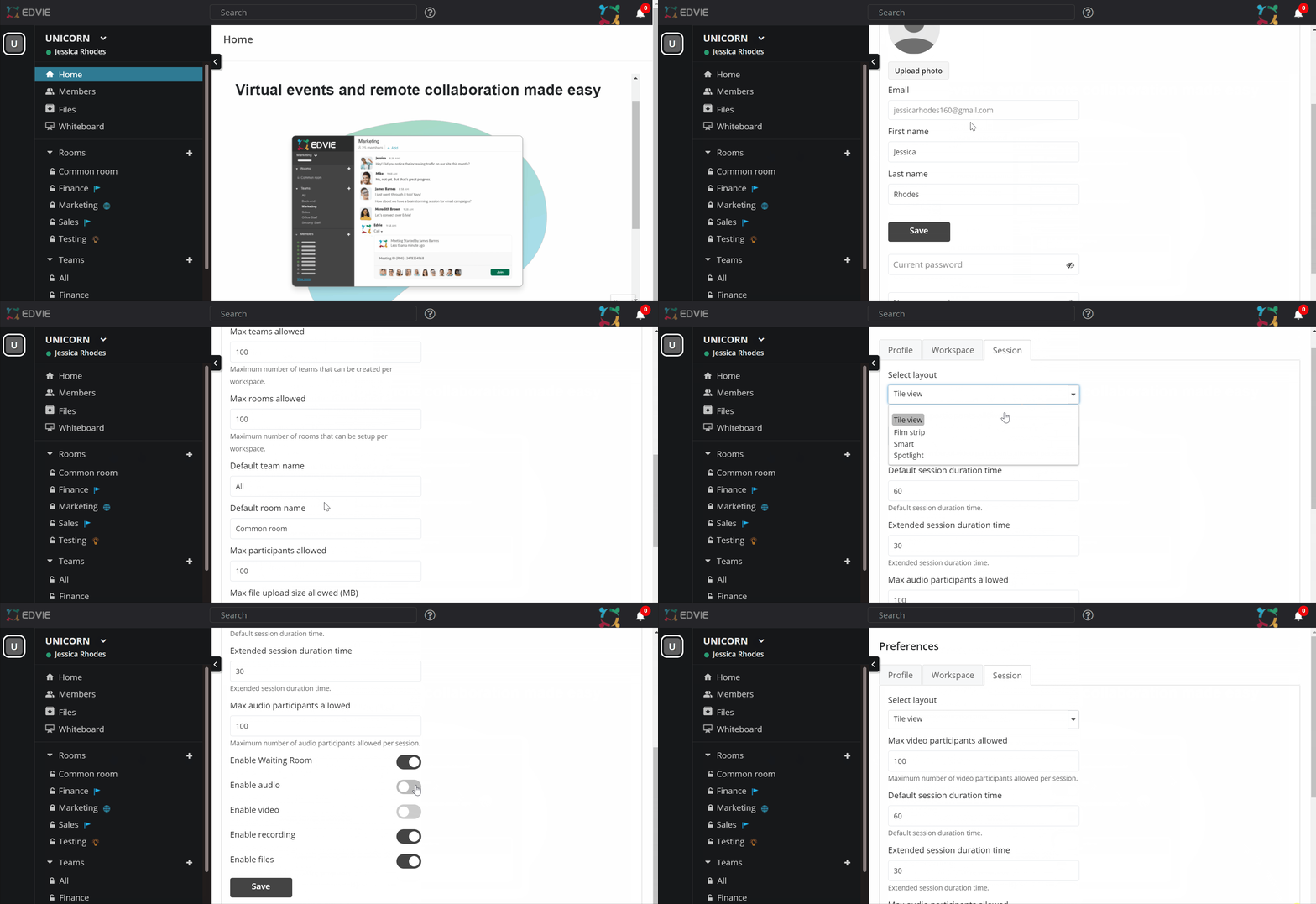
Set up your preferences here! Fill in your details and click on update
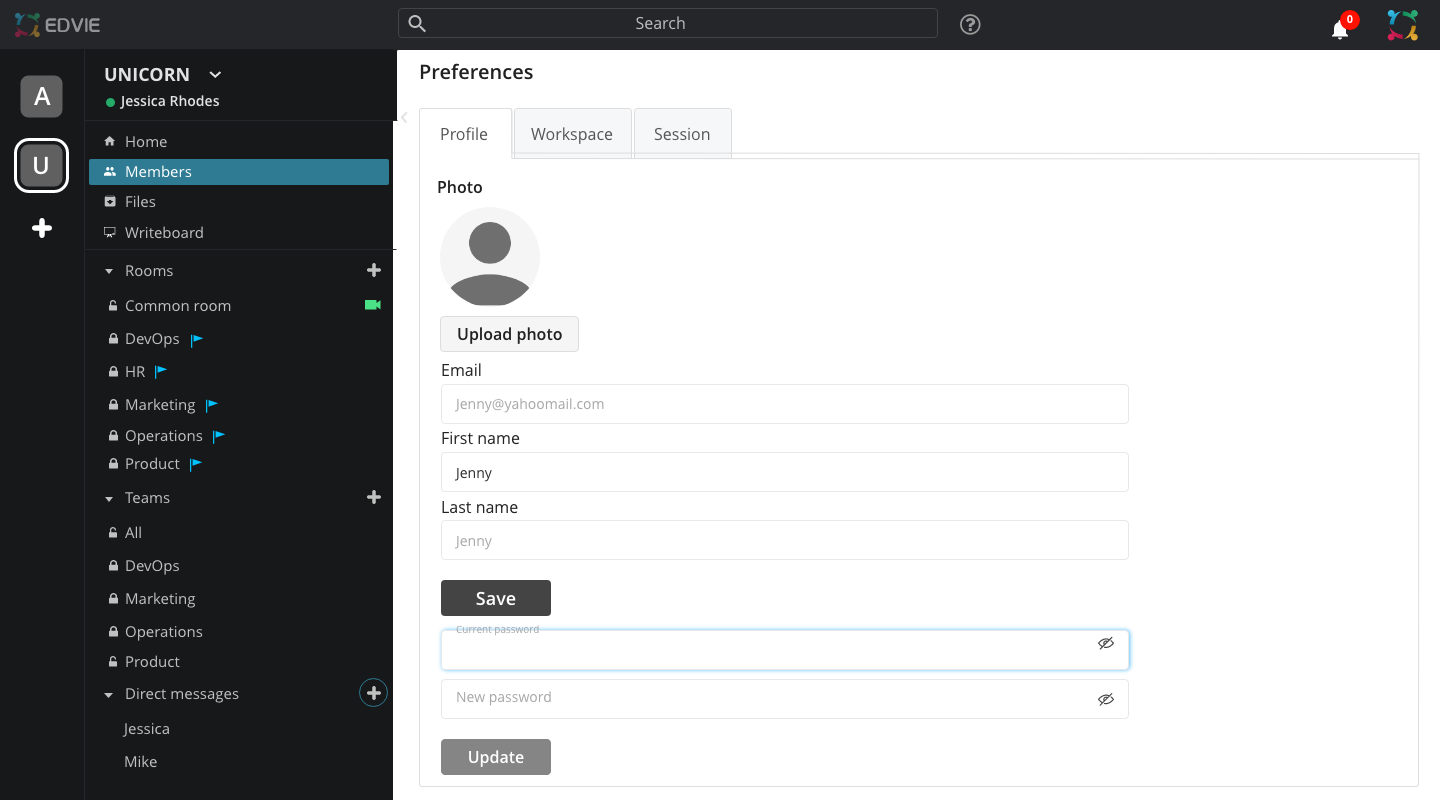
upload your workspace logo here click to save
Nicely done!